
How to Automatically Save Invoices from Email to a Folder with n8n
Save invoices from email to a folder automatically with an n8n flow in three stages: PDF filter, name from sender and month, folder for exceptions.
An n8n flow can save invoices from email automatically in three stages. It catches a message with an attachment and checks that the file is a PDF. Then it names the file after the sender and the month. Finally it saves the file in a folder chosen by sender and month. Below I describe each stage and how to handle unusual files.
How much time does moving invoices from email by hand take?
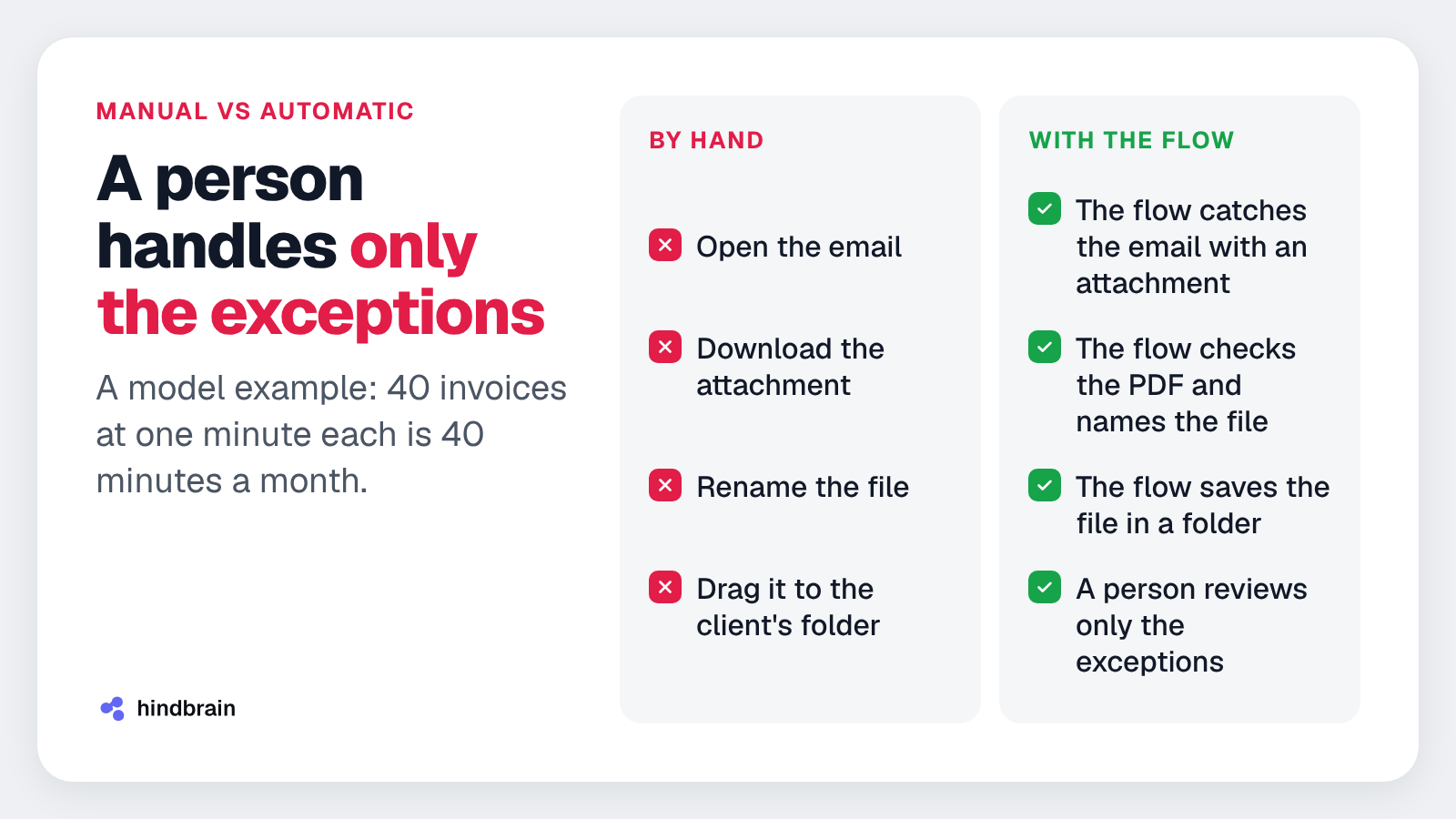
An accountant or business owner opens an email. They download the attachment, rename the file and drag it into the client's folder. They repeat this for every invoice. Each step is simple, but it happens dozens of times a month.
A model example: a company receives 40 invoices a month, and handling one takes a minute. That gives 40 minutes a month spent only on moving files. This number is illustrative, not the result of a specific client.
Mistakes add to the time. A file with the wrong name ends up in the wrong folder. Someone then hunts for it at month-end close.
An n8n flow takes the repetitive part off the person. The person deals with the exceptions.
Static preview — animation disabled.
How does an n8n flow that saves invoices from email work?
The flow shown in the reel has three stages. Building it in the recording took 60 seconds, measured with a stopwatch.
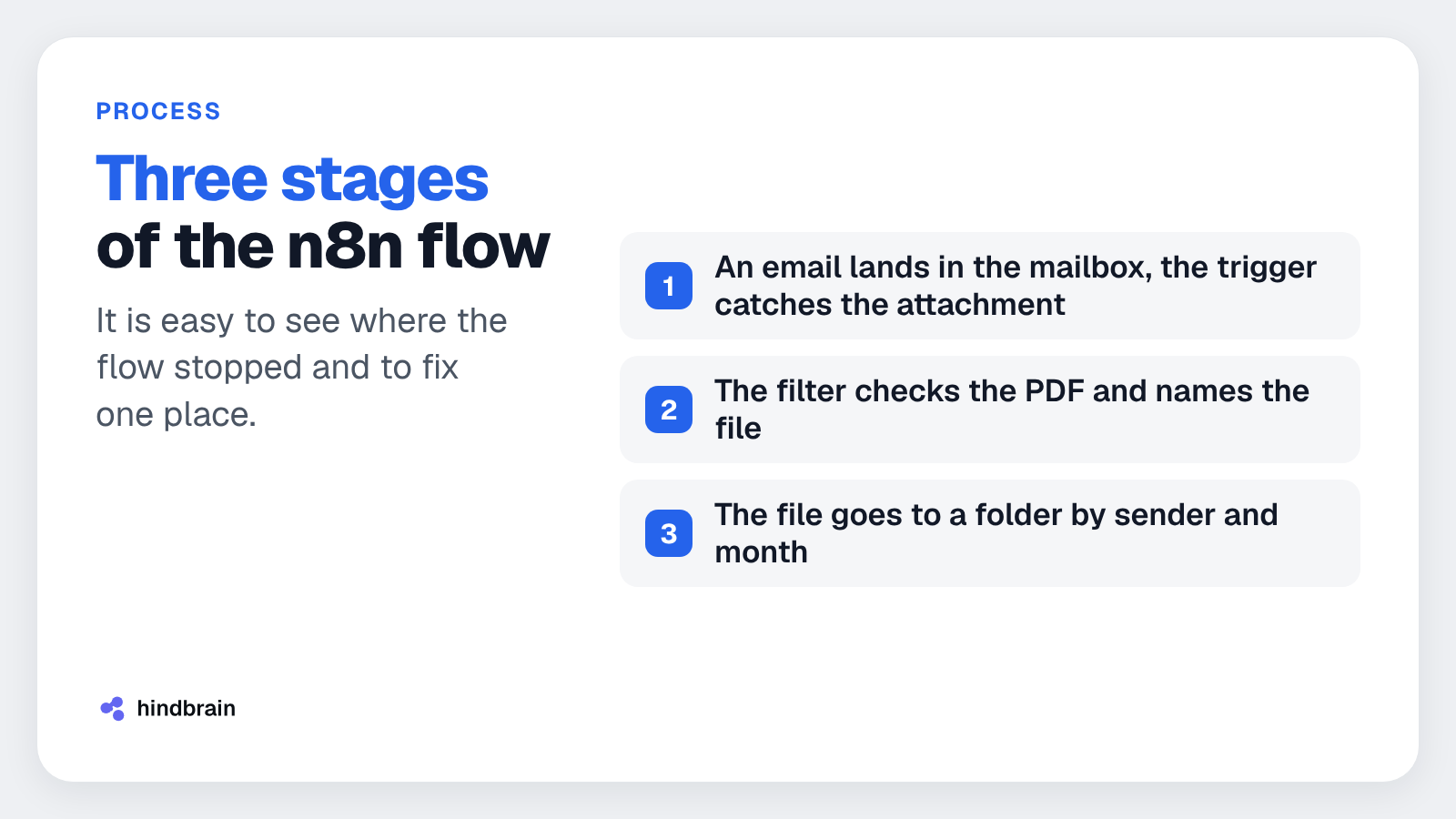
- An email lands in the mailbox, and the trigger catches every message with an attachment.
- A filter checks that the attachment is a PDF, and the file name is built from the sender and the month.
- The file goes to a folder chosen by sender and month.
Each stage is a separate node or a short group of nodes in n8n. This makes it easy to see where the flow stopped and to fix one place without touching the rest.
You connect the mailbox once. The flow handles the rest.
Stage one: how do you connect a mailbox so the flow catches every email with an attachment?
The first node is the mail trigger. n8n has triggers for IMAP mailboxes, Gmail and Microsoft Outlook. You pick the one your company uses and log in once.
The trigger reacts to every new email with an attachment. You do not need to click anything or remember to check the mailbox. The flow starts by itself as soon as a message arrives.
It is worth deciding which mailbox to connect. Most often it is a shared invoice address, for example one that starts with "invoices" before the domain name. That way the flow does not mix documents with employees' private correspondence.
Before you start, check in the account settings whether it allows access for external apps. Some company mail systems need a separate app password or administrator approval for this.
Stage two: how does the flow check that an attachment is a PDF invoice?
The second stage is a filter. The flow asks two questions. Is there an attachment in the email, and is it a PDF file? When the answer is yes, the file moves on.
Then the flow names the file. It builds the name from the sender and the month. A model example: for a message from the company Alfa in November 2026, the file might be called “2026-11_alfa.pdf”.
Such a name has two advantages. It sorts chronologically, and it is easy to find by sender in the file search.
There is one detail to think through. Two invoices from the same sender in one month would get the same name. To stop one from overwriting the other, add a sequence number or the time the email was received. That is a single change in the node that builds the name.
Stage three: which folder does the file go to, and what about unusual formats?
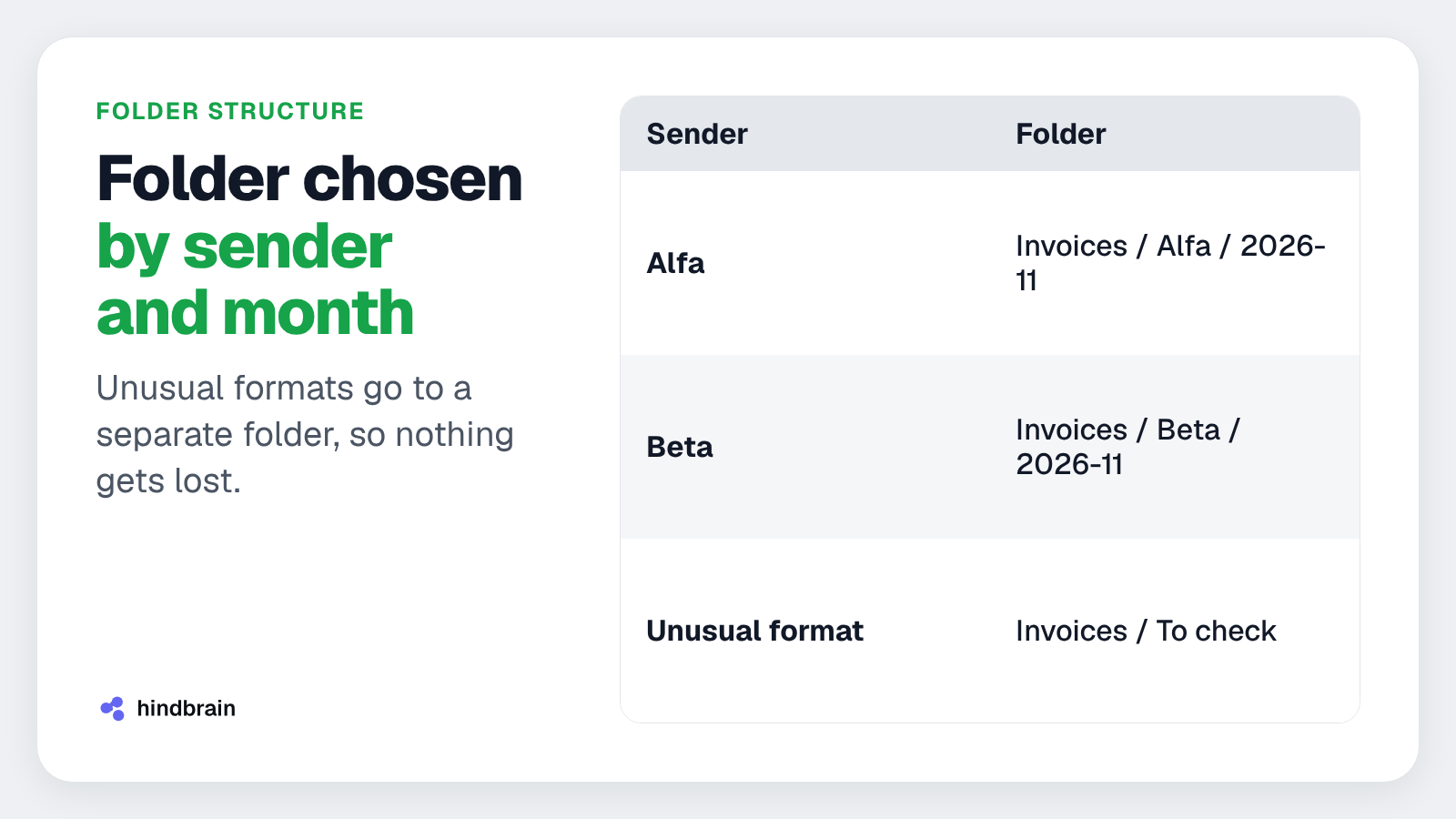
The third stage is saving. The flow chooses the folder by sender and month. A model example of the folder layout looks like this:
- Invoices / Alfa / 2026-11
- Invoices / Beta / 2026-11
- Invoices / To check
In an accounting office the sender may be a client, and the folder that client's monthly file. In a company the sender is a supplier. The rule works the same way in both cases.
The flow will not recognise an unusual format. Such an attachment lands in the "To check" folder. This way nothing gets lost along the way. The person responsible for documents reviews this one folder instead of the whole mailbox.
The flow from the reel sorts files and does not read their content. If you want to add reading data from the invoice or passing it to accounting software, see our integrations and automation page. We describe there how we connect individual tools into one process.
What should you do today?
Pick one mailbox that receives the most invoices. For a week, note how many invoices arrive and which folders they go to. From this you will settle two things: the file naming scheme and the folder structure.
Then save the reel and rebuild the flow in n8n step by step. If you want the sheet "20 business processes to automate", reach out through contact. We will send the material to you. It will help you choose the next processes worth automating after invoices.
FAQ
Can you build an n8n flow in 60 seconds?
In the reel, building the flow took 60 seconds, measured with a stopwatch. The flow shown has three stages and uses ready-made n8n nodes. Your own mailbox, folder structure and naming rules must be adapted to your company. Your first run will take longer than the recording.
What happens to an attachment that is not a PDF?
The filter in the second stage lets through only PDFs. The flow moves a file in an unusual format to the "To check" folder. This way nothing gets lost along the way, and a person looks only at the exceptions. It is worth reviewing that folder once a day, for example at the start of the workday.
Which mailbox can you connect to the flow?
n8n has triggers for IMAP mailboxes, Gmail and Microsoft Outlook. You connect the mailbox once, and the flow watches it from then on. The right choice depends on the mail system your company uses. Before you start, check in the account settings whether it allows access for external apps.
Is automatically saving invoices from email enough for bookkeeping?
The flow from the reel sorts files but does not read their content. The invoice lands in the folder under the right name, and a person or an accounting system still does the bookkeeping. The next step is reading data from the invoice and passing it to the software. You can add such reading to the same flow.
Do invoices in folders need to be protected?
Invoices contain data of contractors, including sole traders. Art. 32 GDPR requires appropriate security measures when processing personal data. In practice, limit access to the folders to people who need them. The flow should run on an account with minimal permissions.
Let's talk about your document workflow
If invoices, orders or enquiries reach you by email and someone retypes or moves them by hand, we will show you what can be automated. The first conversation is free. Book a call.